

Wallet Group Cards
Each wallet group appears as a card on your dashboard, showing key information at a glance.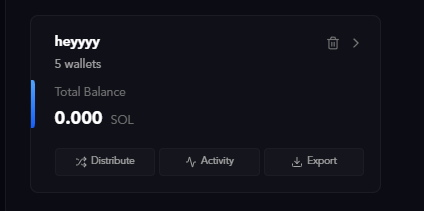
- Group Name and number of wallets
- Total Balance across all wallets in the group
- Quick action buttons:
- Distribute: Send SOL to all wallets in the group
- Activity: Generate human-like trading activity (volume)
- Export: Download wallet data as a file
Distributing SOL
Before your wallets can trade, they need SOL. The distribute function makes this easy.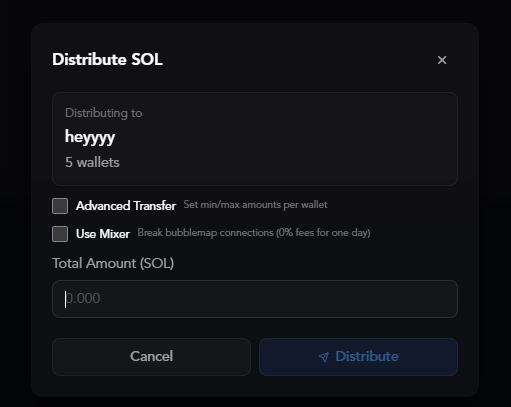
- Click the Distribute button on your wallet group card
- Enter the Total Amount (SOL) you want to distribute
- Optional: Enable Advanced Transfer to set min/max amounts per wallet
- Optional: Enable Use Mixer to break bubblemap connections (1% fee for one day)
- Click Distribute
Using the mixer helps create clean wallets by breaking on-chain connections visible on bubblemaps and other blockchain explorers.
Generate Human Activity
Make your token look organic with automated trading that mimics real users.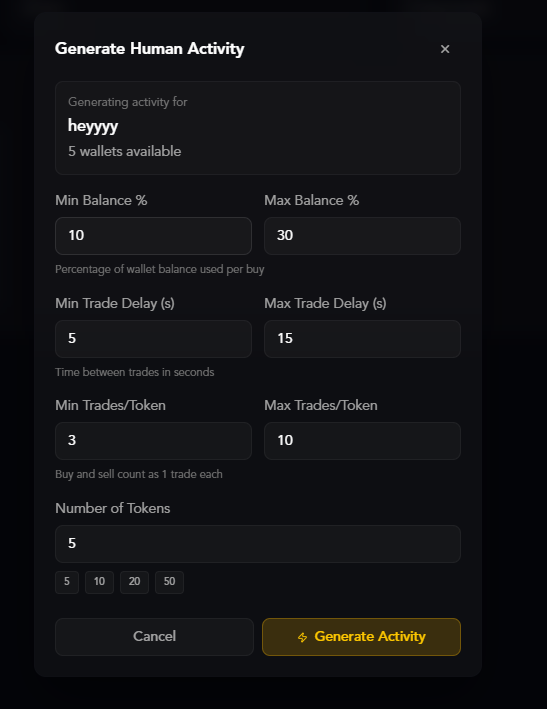
- Min Balance % / Max Balance %: Percentage of wallet balance used per buy (e.g., 10%-30%)
- Min Trade Delay (s) / Max Trade Delay (s): Time between trades in seconds (e.g., 5-15 seconds)
- Min Trades/Token / Max Trades/Token: How many times each wallet trades (buy and sell count as 1 trade each)
- Number of Tokens: How many different tokens to generate activity across
- Click the Activity button on your wallet group
- Configure the randomization settings
- Click Generate Activity
Groups Sidebar
Access advanced group management through the Groups sidebar.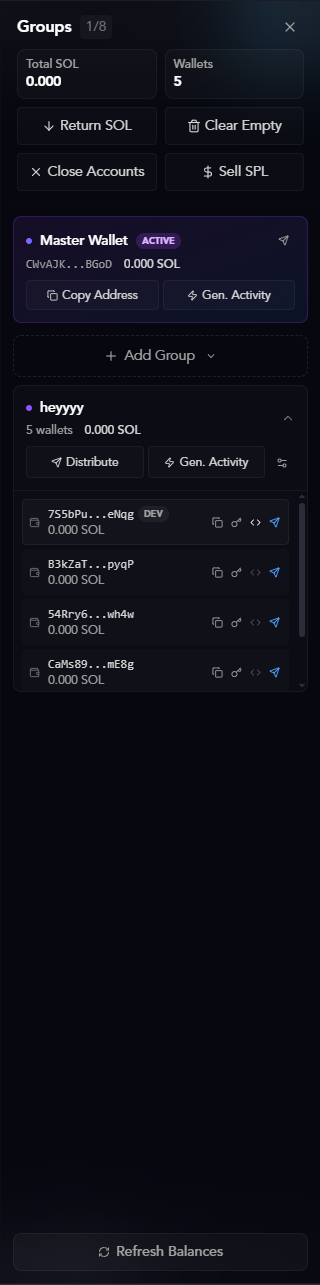
- Clicking the Groups button in the header
- Clicking on a wallet group card
- Total SOL across all groups
- Total Wallets count
- Quick actions: Return SOL, Clear Empty, Close Accounts, Sell SPL
- Master Wallet (your main wallet)
- All your wallet groups with expandable details
Master Wallet
Your master wallet is your main wallet where funds are stored. You can:- Copy Address: Copy your wallet address to clipboard
- Gen. Activity: Generate activity using your master wallet
- Transfer: Send SOL to other addresses
Learn more about managing multiple master wallets, importing existing wallets, and security best practices in the Master Wallets guide.
Transferring SOL
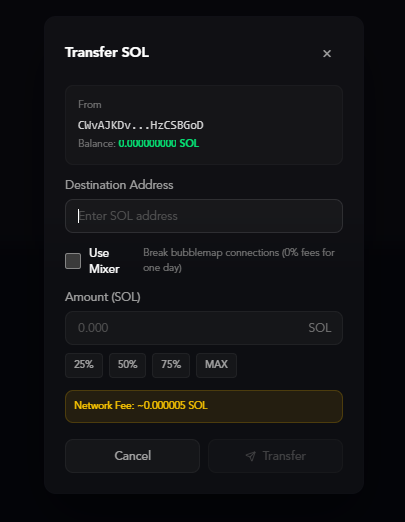
- Click the Transfer icon on your Master Wallet
- Enter the Destination Address
- Optional: Enable Use Mixer for privacy (1% fee)
- Enter the Amount (SOL) or use quick percentages (25%, 50%, 75%, MAX)
- Review the network fee
- Click Transfer
Managing Individual Wallets
Expand any wallet group to see all wallets and manage them individually.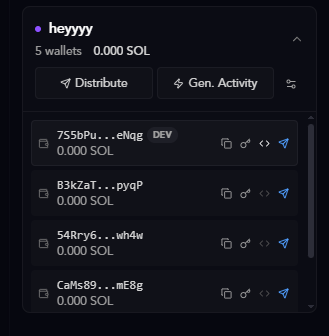
- Wallet address (truncated)
- Current SOL balance
- DEV tag (if marked as developer wallet)
- Quick action icons:
- Copy address
- Set as developer (only one per group)
- Transfer SOL
- Generate activity
Group Options
Click the three dots on any group to access additional options.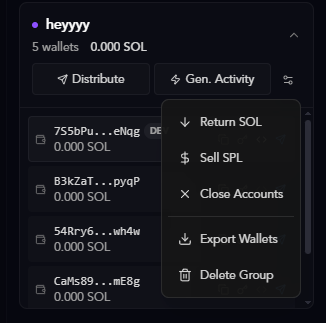
- Distribute: Send SOL to all wallets
- Gen. Activity: Generate trading volume
- Return SOL: Send all SOL back to your master wallet
- Sell SPL: Sell all SPL tokens held by wallets
- Close Accounts: Close empty token accounts to reclaim rent
- Export Wallets: Download wallet data as a file
- Delete Group: Permanently remove this wallet group
Best Practices
- Keep groups organized: Use descriptive names and colors for easy identification
- Distribute SOL evenly: Make sure all wallets have enough balance for trading
- Use realistic activity settings: Avoid obvious patterns by using randomized delays and amounts
- Export regularly: Back up your wallet data periodically
- Use the mixer for privacy: Break on-chain connections when bundling tokens
Ready to deploy your first token? Learn how to use the Twitter Tracker to launch tokens instantly from your feed.