

Types of Presets
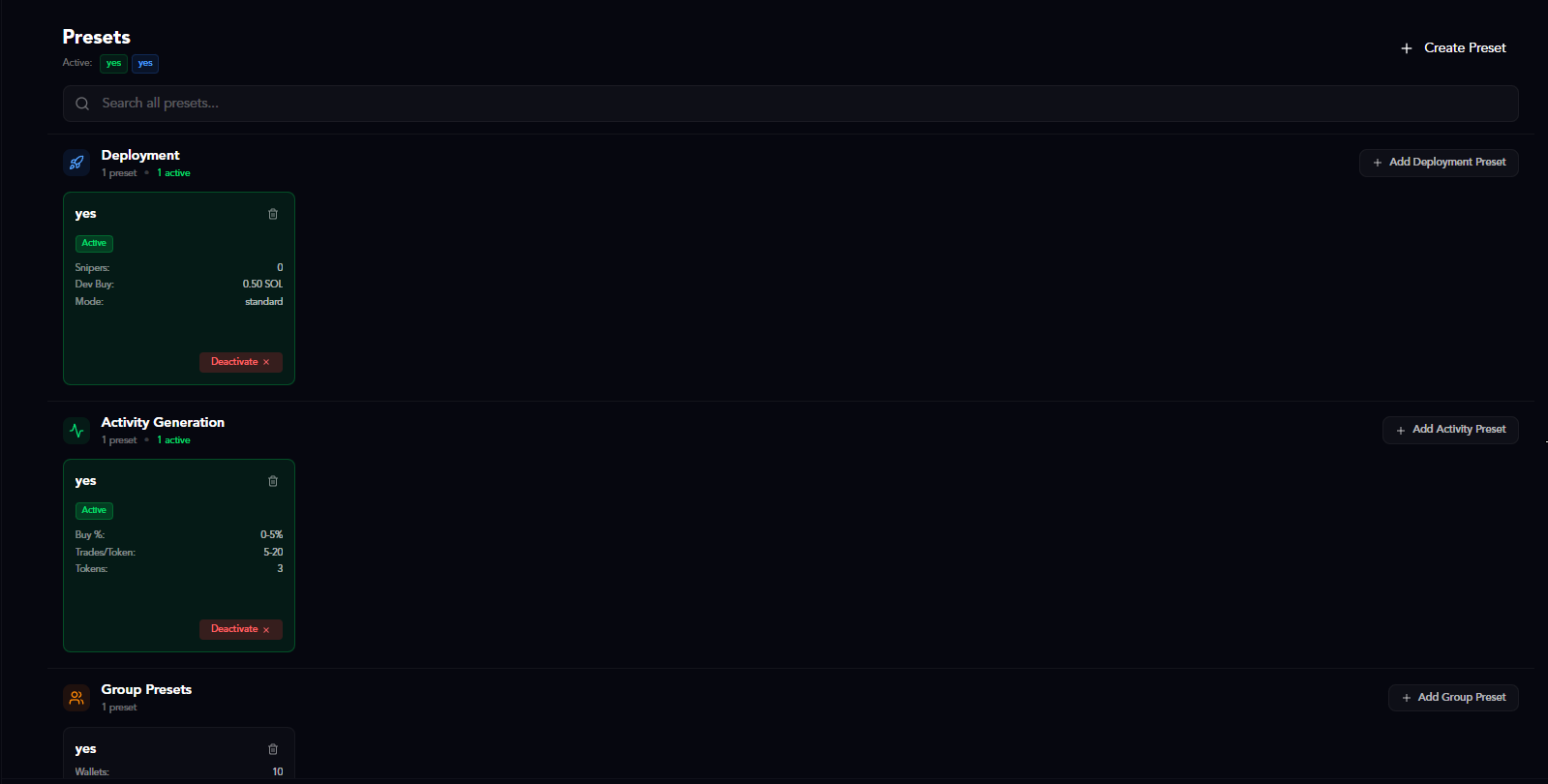
CoinWave offers three types of presets:- Deployment Presets: Save token deployment configurations (dev buy amount, sniper wallets, launch mode)
- Activity Generation Presets: Save volume bot settings for consistent trading patterns
- Group Presets: Save wallet group configurations for quick group creation
Creating Presets
Click the Create Preset button at the top right to open the preset type selector.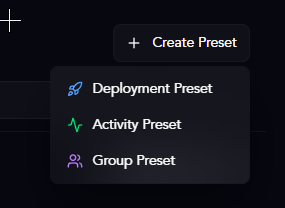
- Deployment Preset: For token launches
- Activity Preset: For volume generation
- Group Preset: For wallet group creation
Deployment Presets
Save your token deployment settings for consistent launches.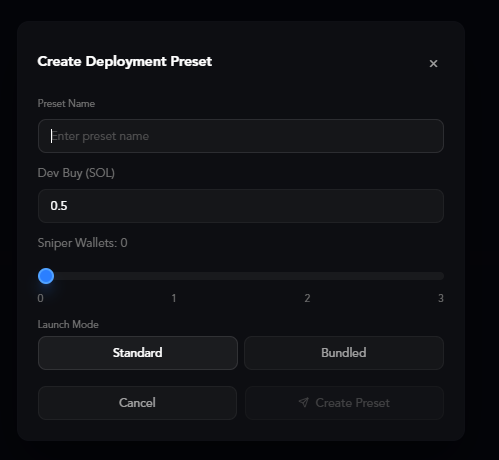
- Preset Name: Name for easy identification
- Dev Buy (SOL): Default developer buy amount
- Sniper Wallets: Number of wallets to use for bundled launches (0-3+)
- Launch Mode: Choose Standard or Bundled
- Standard: Simple launch with just your master wallet
- Bundled: Launch with multiple wallets for instant distribution
Bundled mode supports three execution modes: Safe (block 0), Instant (block 1-2), and Delayed (custom millisecond intervals).
Activity Generation Presets
Save volume bot configurations to simulate trading activity on wallets, making them look established and organic rather than brand new.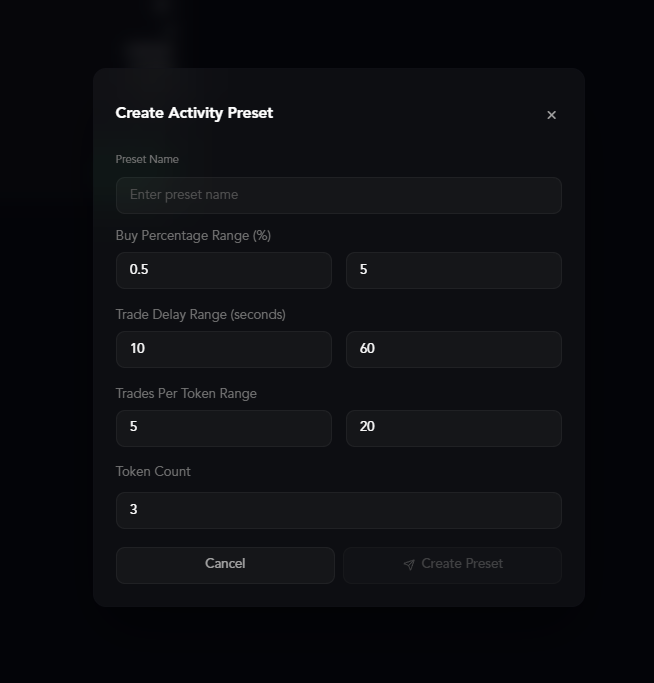
- Preset Name: Name for easy identification
- Buy Percentage Range (%): Min and max percentage of wallet balance to use per buy (e.g., 0.5% - 5%)
- Trade Delay Range (seconds): Min and max time between trades in seconds (e.g., 10 - 60)
- Trades Per Token Range: Min and max number of times to trade each token (e.g., 5 - 20)
- Token Count: Number of different tokens to generate activity across (e.g., 3)
Group Presets
Save wallet group configurations for quick group creation with automatic SOL distribution.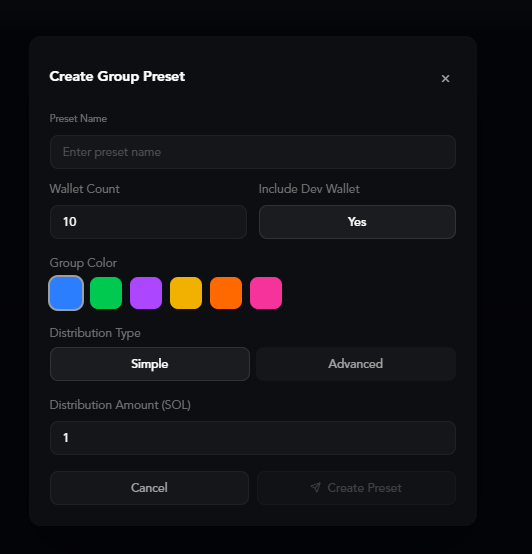
- Preset Name: Name for easy identification
- Wallet Count: Number of wallets to generate (e.g., 10)
- Include Dev Wallet: Mark the first wallet as developer (Yes/No)
- Group Color: Choose a color for visual identification
- Distribution Type:
- Simple: Distribute equal amounts to all wallets
- Advanced: Distribute with amount range per wallet (randomized distribution)
- Distribution Amount (SOL): Total SOL to distribute to the group
When using Advanced distribution, SOL is divided randomly within a range per wallet, making the distribution appear more organic.
Managing Presets
Deployment Preset Cards
Each deployment preset appears as a card showing its configuration.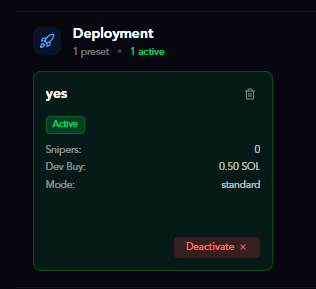
- Preset name
- Active/Inactive status (green = active)
- Snipers: Number of sniper wallets
- Dev Buy: Developer buy amount in SOL
- Mode: Launch mode (standard/bundled)
- Active button: Click to activate this preset
- Deactivate button: Appears when preset is active
- Delete icon: Remove this preset
Activity Generation Preset Cards
Volume bot presets show their trading configurations.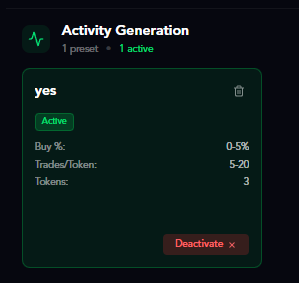
- Preset name
- Active/Inactive status
- Buy %: Buy percentage range
- Trades/Token: Number of trades per token
- Tokens: Number of tokens to trade
- Active button: Click to activate
- Deactivate button: Appears when active
- Delete icon: Remove preset
Group Preset Cards
Wallet group presets show their group configurations.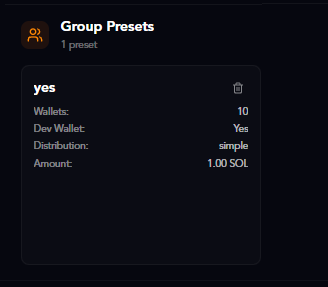
- Preset name
- Wallets: Number of wallets in the group
- Dev Wallet: Whether dev wallet is included (Yes/No)
- Distribution: Distribution type (simple/advanced)
- Amount: Total SOL distribution amount
- Delete icon: Remove preset
Group presets don’t have an Active/Inactive state. Click the preset to instantly create a new wallet group with these settings.
Using Presets
Activating Deployment & Activity Presets
- Navigate to the Presets page
- Find the preset you want to use
- Click the Active button on the preset card
- The preset is now active and will be applied automatically
Using Group Presets
Group presets work differently - they create new wallet groups instantly:- Click anywhere on the group preset card
- A new wallet group is created with the saved configuration
- SOL is automatically distributed to all wallets in the group
Best Practices
- Name presets clearly: Use descriptive names like “Quick 0.5 SOL” or “Volume 5-20 trades”
- Create presets for common strategies: Save your most-used configurations
- Use group presets for consistency: Ensure all your wallet groups have the same setup
- Deactivate when not needed: Prevent accidental use of the wrong preset
- Delete unused presets: Keep your preset list clean and organized
Ready to learn about more features? Check out the Settings page to customize your CoinWave experience.