

How It Works
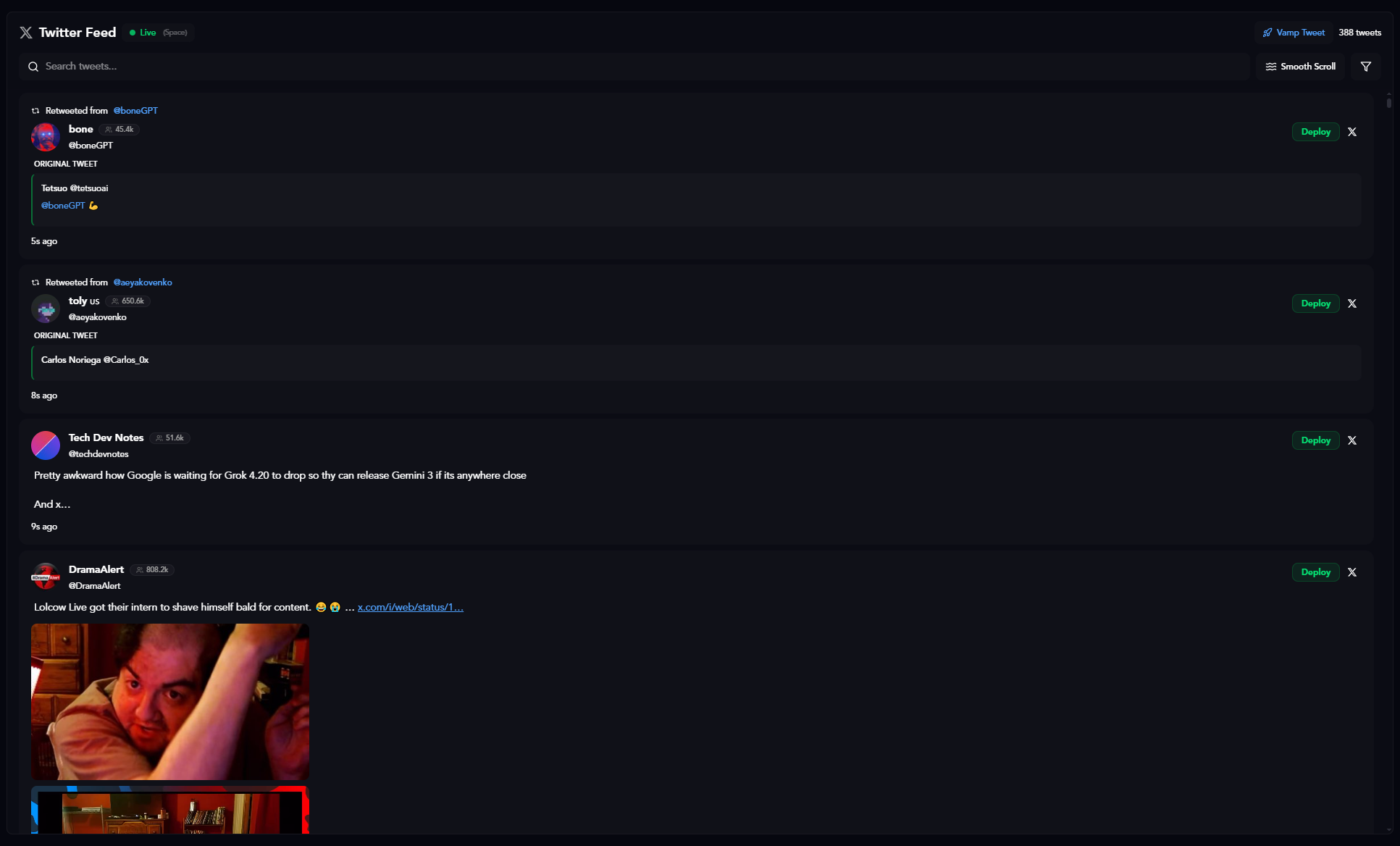
The Twitter Tracker displays your live Twitter feed inside CoinWave. When you see a tweet you want to turn into a token, simply hover over it and click Deploy. The tweet’s content automatically populates the deployment form on the left:- Tweet author’s profile picture becomes the token image
- Tweet text becomes the token description
- You can customize everything before deploying
This is perfect for launching meme tokens based on trending tweets or viral content.
Feed Controls
At the top of the feed, you’ll find several controls:- Search tweets: Filter your feed by keyword
- Live: See tweets in real-time as they’re posted
- Vamp Tweet: Paste any tweet URL to deploy it as a token
- Smooth Scroll: Toggle smooth scrolling for easier browsing
- Filter icon: Customize which accounts appear in your feed
Additional Playback Controls
- Pause on hover: The feed automatically pauses when you hover over a tweet
- Pause on spacebar: Press the spacebar to pause/unpause the feed while browsing
- Smooth scroll: Enable smooth scrolling for a more natural viewing experience
Feed Filter
Customize your feed by filtering which accounts you want to see. Click the filter icon to open the Feed Filter modal.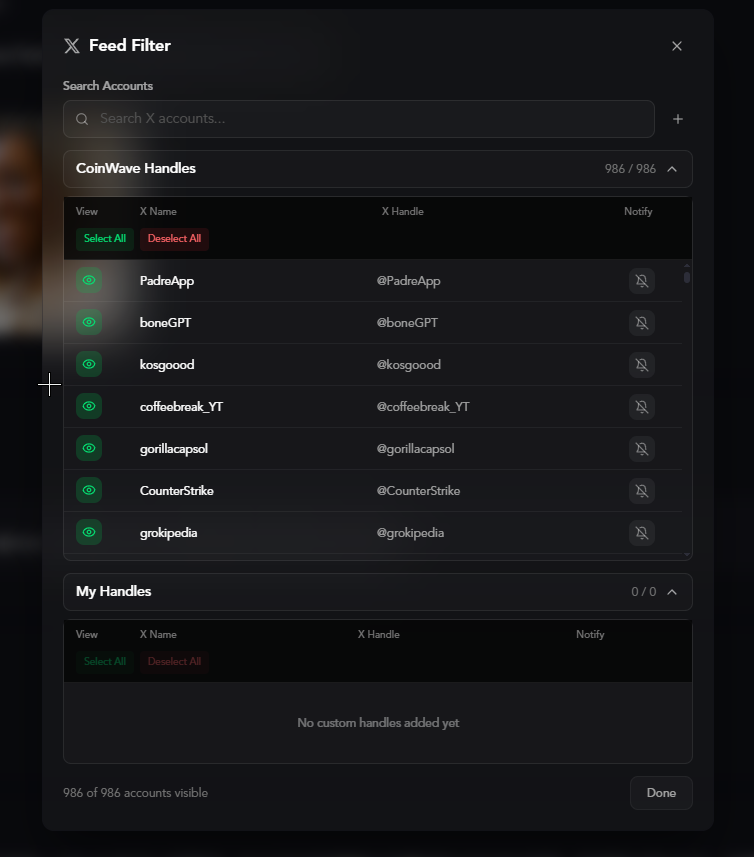
CoinWave Handles
Pre-selected accounts curated by CoinWave. These are popular accounts known for posting content worth tokenizing.- Select All / Deselect All: Quickly toggle all CoinWave handles
- View toggle: Enable/disable viewing tweets from specific accounts
- Notify toggle: Get notifications when these accounts post
My Handles
Add your own custom accounts to track.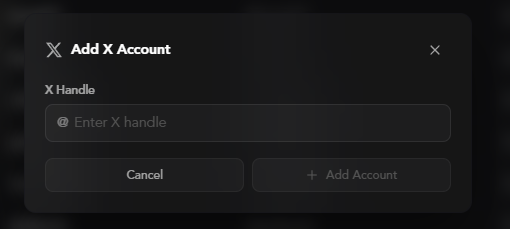
- Click the + button in the My Handles section
- Enter the X handle (e.g.,
@username) - Click Add Account
Filtering your feed helps you focus on specific accounts and reduces noise from unrelated content.
Deploying from a Tweet
Hover to Deploy
When you hover over any tweet, action buttons appear.
- Deploy: Instantly load this tweet into the deployment form
- Thunderbolt: Use your starred Quick Launch config to instantly deploy with preset settings
- X logo: View the original post on Twitter/X
The thunderbolt icon only appears when you have a Quick Launch config starred/activated. Star a config in the Quick Launch section to enable one-click deployment from your feed.
Quick Deployment Process
- Browse your Twitter feed or search for specific tweets
- Hover over a tweet you want to tokenize
- Click the Deploy button
- The deployment form auto-fills with the tweet’s content
- Customize token settings if needed (name, ticker, launch options)
- Click Deploy Token to launch
Vamp Tweet
Deploy any tweet by pasting its URL, even if it’s not in your feed.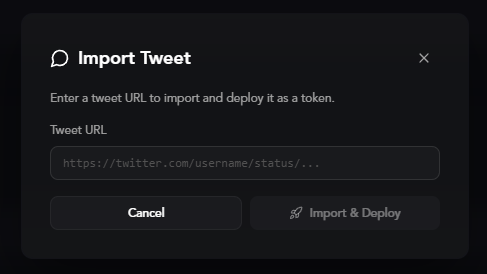
- Click Vamp Tweet at the top of the feed
- Paste the tweet URL (e.g.,
https://x.com/username/status/1234567890) - Click Deploy
Vamp Tweet is perfect for deploying tweets from accounts you don’t follow or older tweets that aren’t in your current feed.
Best Practices
- Act fast on trending tweets: Viral content creates the best opportunities
- Search for specific topics: Use the search bar to find niche content
- Preview before deploying: Always review the auto-filled information before launching
- Customize the ticker: The auto-generated ticker might need adjustment for better branding
What Happens After Clicking Deploy
When you click Deploy on a tweet:- The tweet’s media (image/video) is set as the token image
- The tweet text fills the description field
- The deployment form on the left is ready to customize
- You can modify the name, ticker, and all other settings
- Choose your launch mode (Standard or Bundled)
- Click Deploy Token when ready
Ready to configure your deployment settings? Check out Presets to save your favorite launch configurations.