

Navigation
Header
The header gives you quick access to all main features of CoinWave.
- Groups: Manage your wallet groups
- Presets: Access and create deployment presets
- Close Accounts: Quickly close token accounts
- Sell Tokens: Sell your tokens
- Return SOL: Return SOL from your wallets back to your main wallet
Footer
The footer displays real-time market data and your wallet information.
- SOL Price: Live Solana price with 24h change
- Tokens: Currently monitored tokens
- Wallet Balance: Your active master wallet balance and address
Click on your wallet in the footer to access the master wallet dropdown, where you can switch between wallets, add new ones, or export your wallet data. Learn more in the Master Wallets guide.
Dashboard Stats
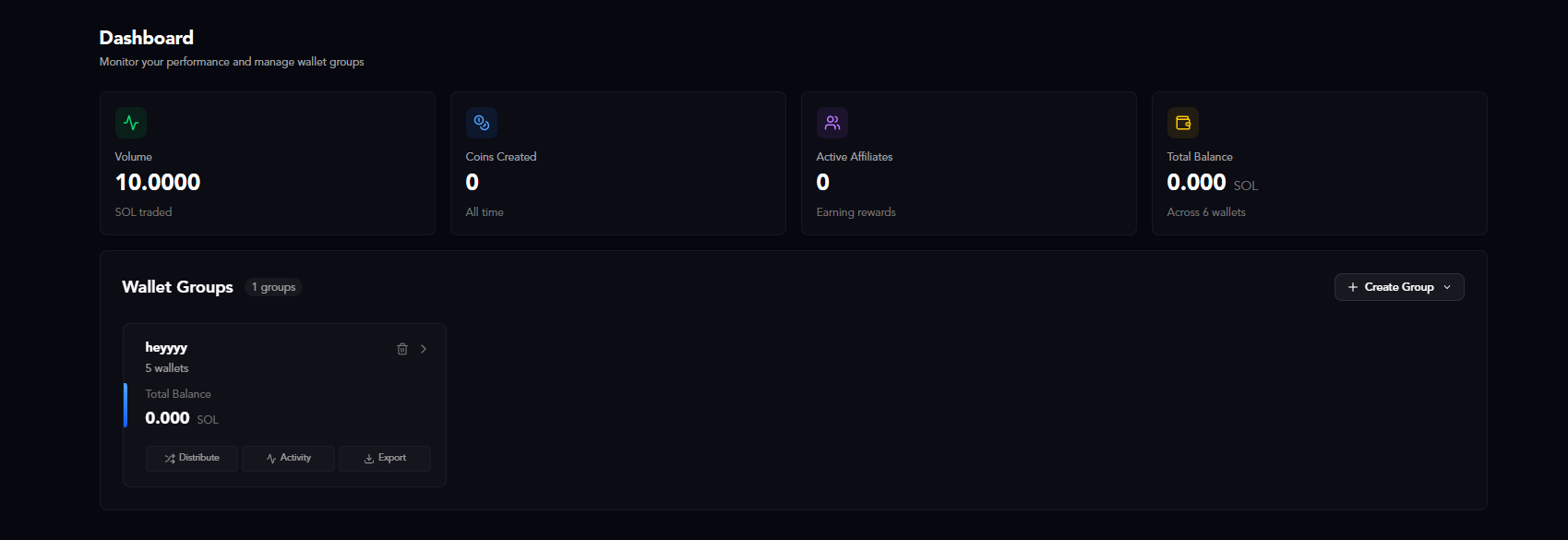
Your dashboard shows four key metrics at a glance:- Volume: Total SOL traded across all your wallet groups
- Coins Created: Number of tokens you’ve deployed all time
- Active Affiliates: Users currently earning you rewards
- Total Balance: Combined balance across all your wallets
Wallet Groups
Wallet groups are collections of wallets used for bundling tokens and generating volume. You can create multiple groups to organize your operations.Creating a Wallet Group
Click the “Create Group” button to get started. You have two options:Option 1: Generate Wallets
Generate fresh wallets automatically. Perfect for clean starts with no previous transaction history.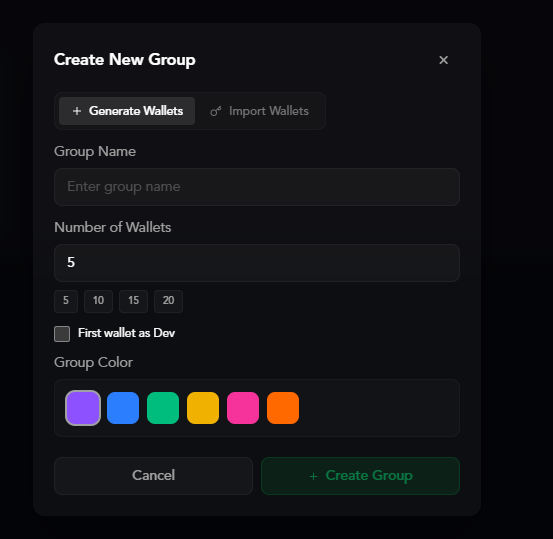
- Enter a Group Name to identify this wallet group
- Choose the Number of Wallets (5, 10, 15, or 20)
- Optionally mark the First wallet as Dev (this wallet will be used as the developer wallet for token deployments)
- Select a Group Color to easily identify this group
- Click “Create Group”
Option 2: Import Wallets
Import existing wallets using their private keys.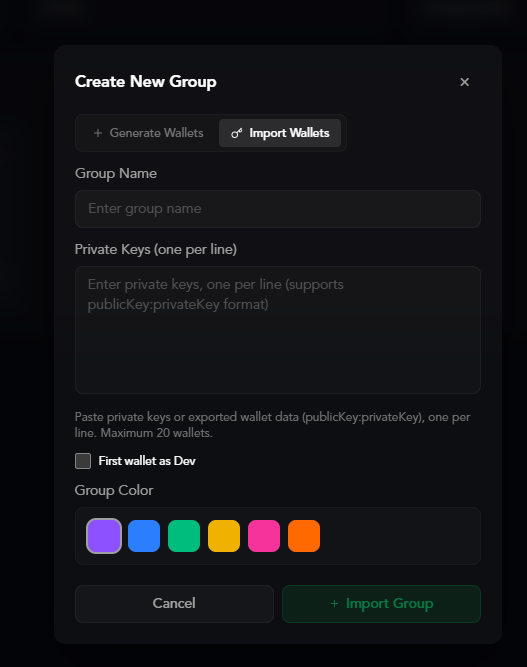
- Click the Import Wallets tab
- Enter a Group Name
- Paste your Private Keys (one per line, supports
publicKey:privateKeyformat)- Maximum 20 wallets per group
- Optionally mark the First wallet as Dev
- Select a Group Color
- Click “Import Group”
All private keys are encrypted with AES-256 GCM encryption and stored securely. Your keys never leave your browser unencrypted.
Managing Wallet Groups
Once created, each group shows:- Group name and number of wallets
- Total balance across all wallets in the group
- Quick actions: Distribute SOL, view Activity, and Export wallet data
Ready to launch your first token? Head over to the Twitter Tracker to start deploying.